How to Password Protect Google Sheets
Learn how to keep your Google Sheets safe with security options available within Google Sheets.
![[Featured Image] An office employee learns how to password protect Google Sheets on their laptop.](https://d3njjcbhbojbot.cloudfront.net/api/utilities/v1/imageproxy/https://images.ctfassets.net/wp1lcwdav1p1/3IR6J8hiTc10B7zPmCntbn/4e380db9487860f6b5ed2b87a1406d8b/GettyImages-1310896133.jpg?w=1500&h=680&q=60&fit=fill&f=faces&fm=jpg&fl=progressive&auto=format%2Ccompress&dpr=1&w=1000)
Key takeaways
Google Sheets lacks password protection, but you can put protections on your sheets or parts of a sheet.
You can protect a Google Sheet by navigating to Data > Protect sheets and ranges in the menu bar, where you can set or change permissions and choose how to limit editing.
While protecting a range or sheet in Google Sheets prevents the information from being changed, the sheet itself can still be accessed.
You can restrict unauthorized views of a Google Sheet by modifying access permissions in the shared link settings.
Learn more about the protection measures Google Sheets offers to safeguard sensitive data. Afterward, enroll in Google’s Data Analytics Professional Certificate to learn how to clean and organize data for analysis and visualize data findings. You’ll gain in-demand skills and get AI training from Google experts while learning at your own pace.
Password protect Google Sheet basics
Google Sheets is a popular tool used by professional teams to share data, store information, and
track important metrics. For many companies, this information is sensitive or proprietary and needs to be secured, which can lead people to wonder if it’s possible to password protect Google Sheets. Google Sheets currently doesn’t have a password protection feature, but you can put protections on your sheets or parts of a sheet.
How to protect a range or sheet in Google Sheets
Protecting a range or sheet in Google Sheets means that the people who have access to the sheet can’t change the information in the sheet. It’s essential to remember that even while protected, it’s possible to copy, paste, print, or export the sheet. Here’s what you’ll need to do to protect a Google Sheet:
Select the data you want to protect.
Set or change permissions.
Choose how to limit editing with permissions.
Click save or done.
Let’s go over these steps in more detail.
1. Select the data you want to protect.
Once you’ve opened the spreadsheet you want to work with, select the data you want to protect. To do this, first click on Data > Protect sheets and ranges.
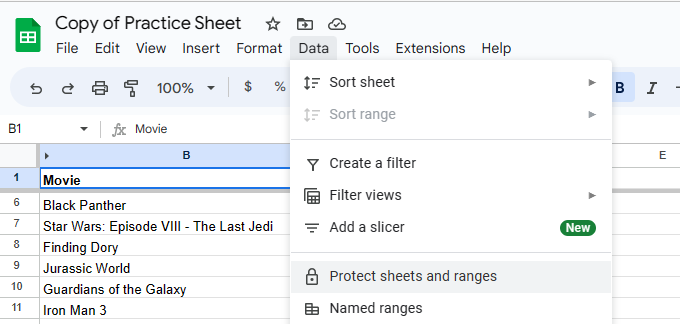
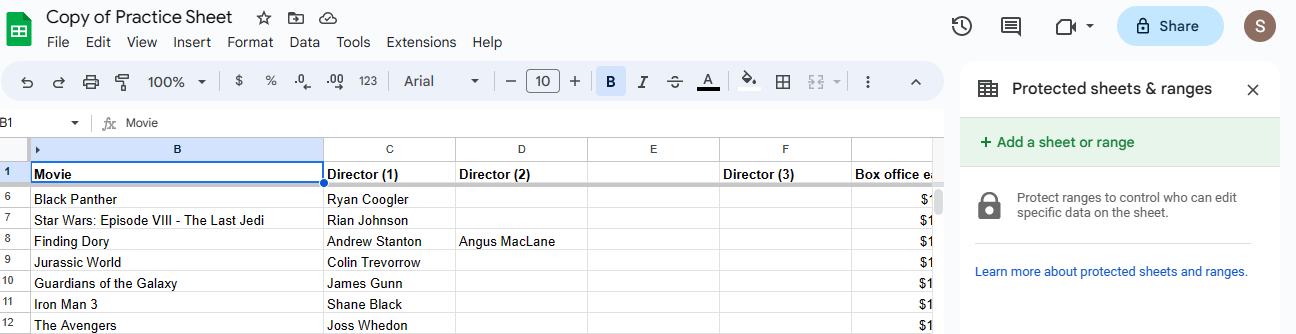
You’ll see a menu open on the right side of the screen. Click Add a sheet or range. If you’re protecting a range, click Range and make sure the selected cells are correct. If you’re protecting a sheet, click Sheet.
If you’ve come to edit a permission you’ve already set, select the existing permission in order to change it. It will be listed under the Add a sheet or range button.
2. Set or change permissions.
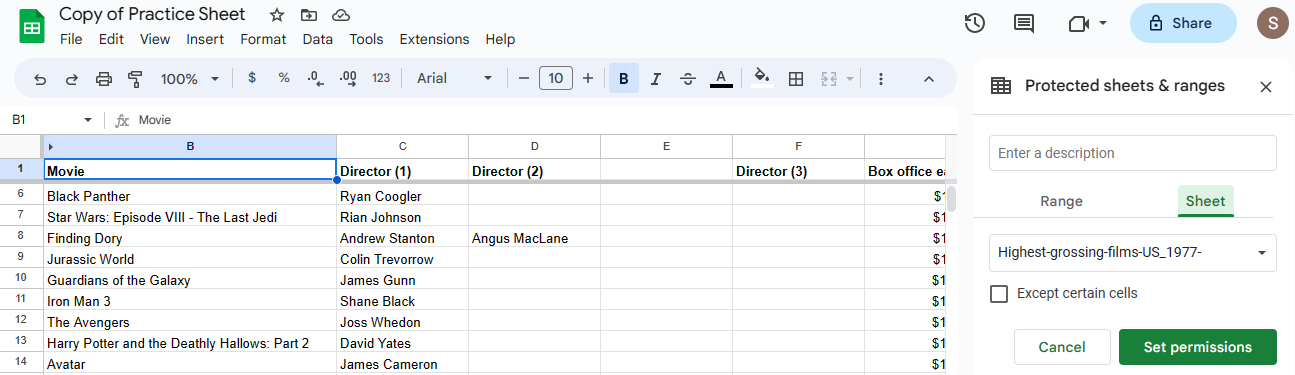
Next, click Set permissions if you’re adding a new permission. If you’re editing existing permissions, select Change permissions.
3. Choose how to limit editing with permissions.
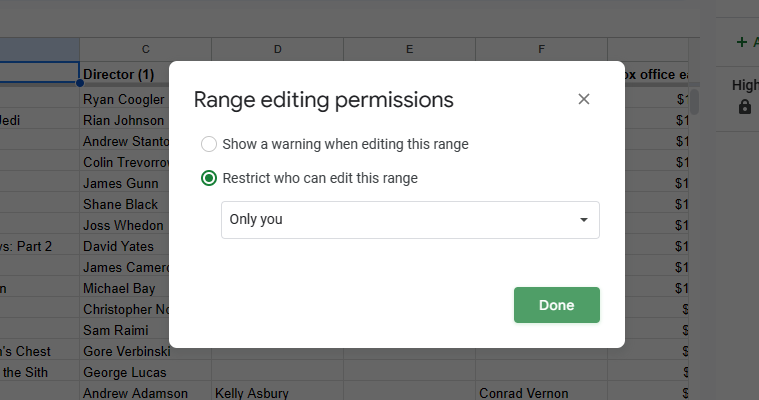
You can limit editing in two different ways. One option is to allow people to edit a sheet, and they’ll receive a warning asking to confirm the edit. To do this, select Show a warning when editing this range.
You can also limit editing to specific people. To do this, select Restrict who can edit this range. You can choose from the following options:
Only you: Only you and the document’s owner have the option to edit.
Only domain: Only the people in your domain have the option to edit.
Custom: Only the people you designate have the option to edit.
Copy permissions from another range: Reuse the same permissions you’ve set up on another range or sheet.
4. Click Save or Done.
Once you’ve set your permissions, click Done to apply your new permissions.
How can I restrict access to a Google Sheet?
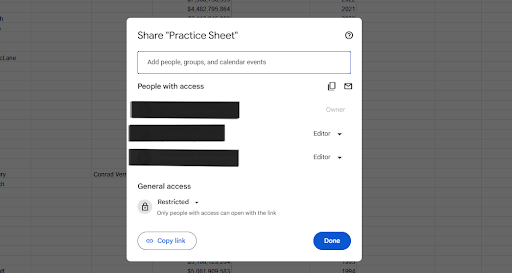
While protecting a range or sheet in Google Sheets prevents the information from being changed, the sheet itself can still be accessed. If you want to restrict unauthorized views of a Google Sheet, you can adjust other users’ access based on the shared link. To do this, follow these steps:
Click Share and type in the names of the people you want to have access in the Add people, groups, and calendar events textbox.
Choose either Editor, Commenter, or Viewer access.
Underneath the General access, select how to restrict the link access. Restricting access is the most effective way to keep your document protected from unauthorized viewing.
How can I password protect a Google document?
Password protection isn’t available directly within Google Docs as a feature. However, you can still strengthen security by signing into your Google Account using a passkey instead of a traditional password. Your passkey can be your fingerprint, face scan, or PIN. Unlike passwords, passkeys are not transferable and remain on your device. Using a passkey tells Google that you have authorized access to the device and can unlock it securely.
Read more: Multi-Factor Authentication: Enhancing Security with Multiple Verification Factors

Check out our free resources on data analytics
Join Career Chat on LinkedIn to keep track of the latest trends and opportunities in data analytics. Discover more about data analytics with our other free digital resources:
Learn terminology: Data Analysis Terms & Definitions
Hear from an expert: Data analytics tips from a University of Michigan prof
Explore career paths: 3 High-Paying Career Paths After Google Data Analytics Certificate
Accelerate your career growth with a Coursera Plus subscription. When you enroll in either the monthly or annual option, you’ll get access to over 10,000 courses.



Coursera Staff
Editorial Team
Coursera’s editorial team is comprised of highly experienced professional editors, writers, and fact...
This content has been made available for informational purposes only. Learners are advised to conduct additional research to ensure that courses and other credentials pursued meet their personal, professional, and financial goals.